1. Accessing the System
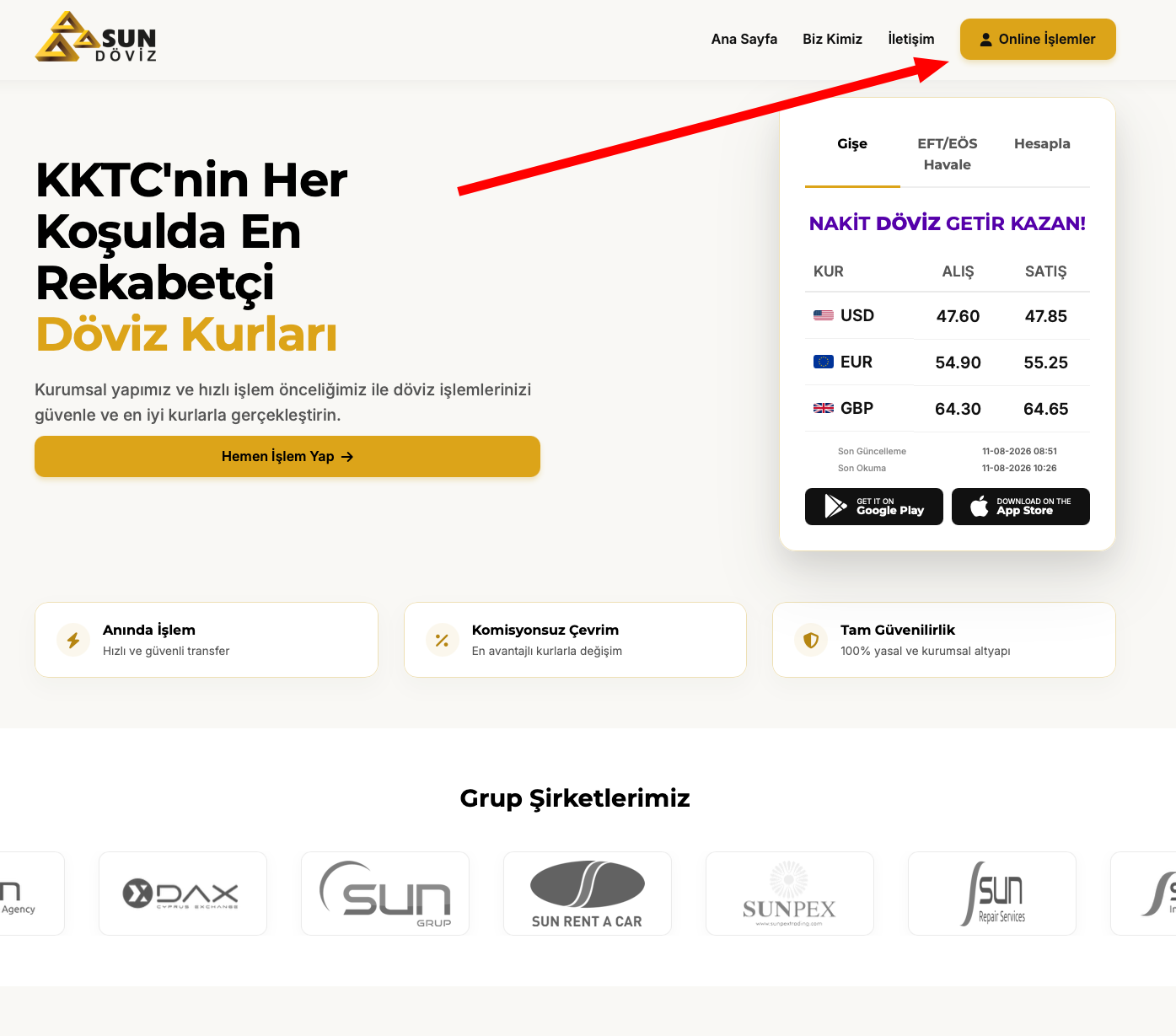
To reach the online quote system, go to the sundoviz.com home page and click the Online İşlemler (Online Transactions) button in the top-right corner. This takes you to the login and registration screen at online.sundoviz.com.
2. Signing Up
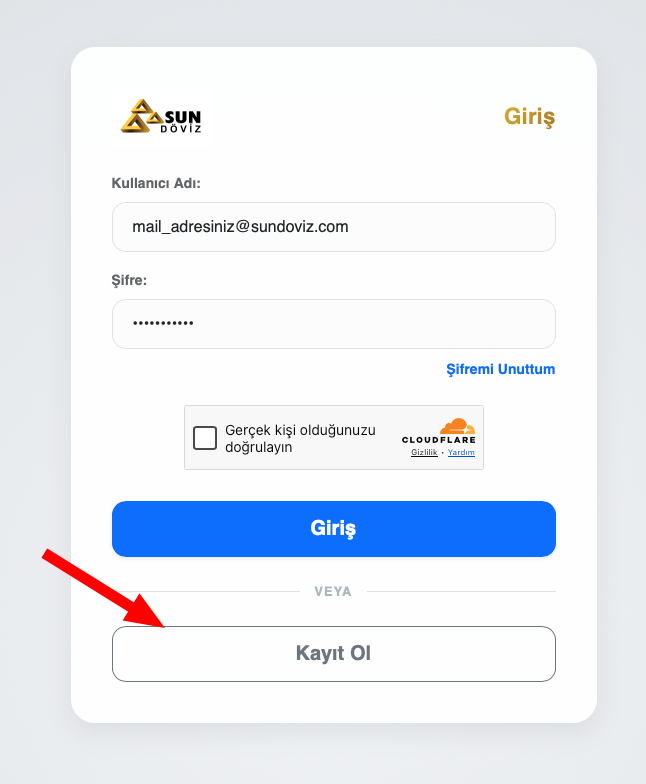
If you are not a member yet, click the Kayıt Ol (Sign Up) button on the login screen to open the new member form.
2.1 Individual Membership
When the Yeni Üye Formu (New Member Form) opens, Bireysel (Individual) is selected by default. Fill in the required information:
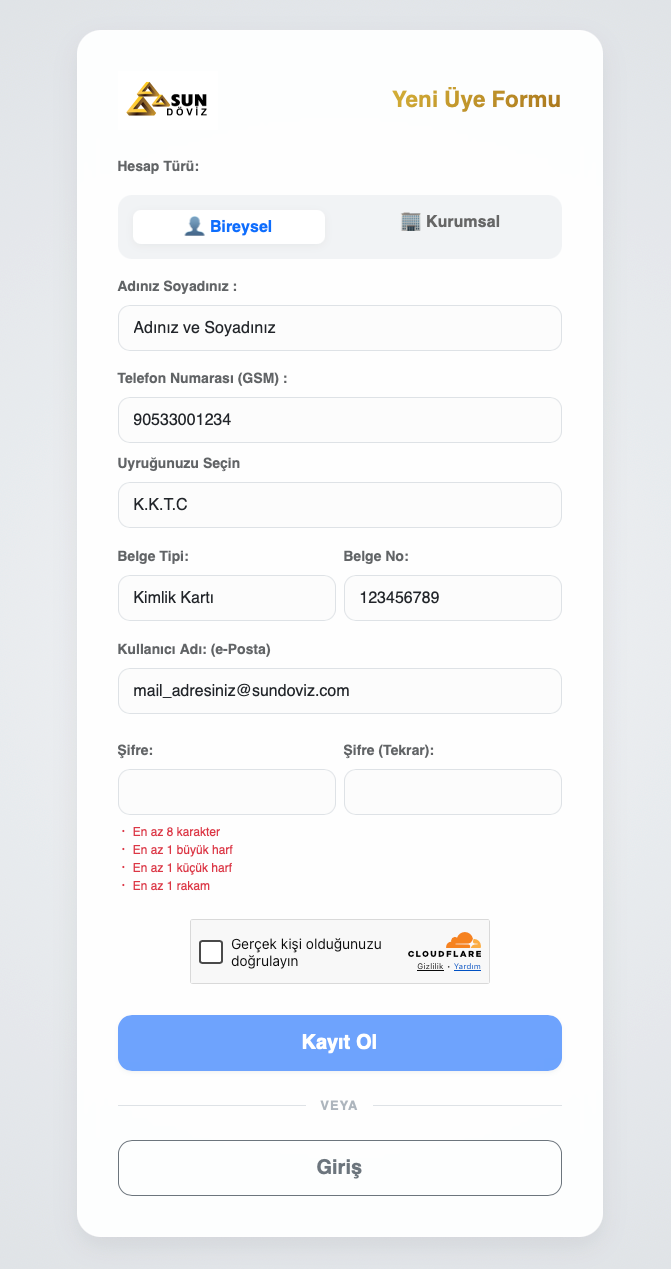
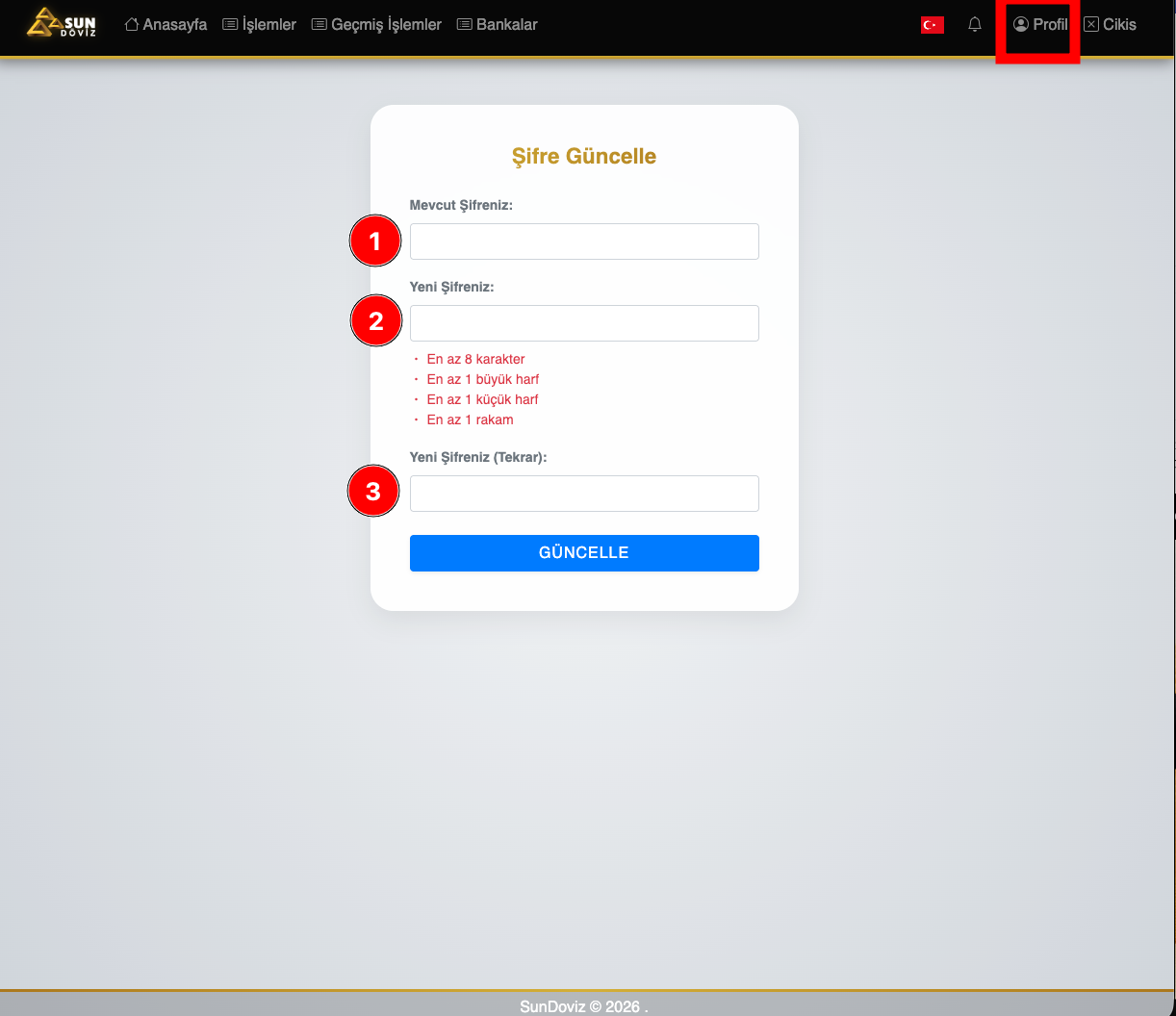
Password requirements: At least 8 characters, 1 uppercase letter, 1 lowercase letter, and 1 number.
2.2 Corporate Membership
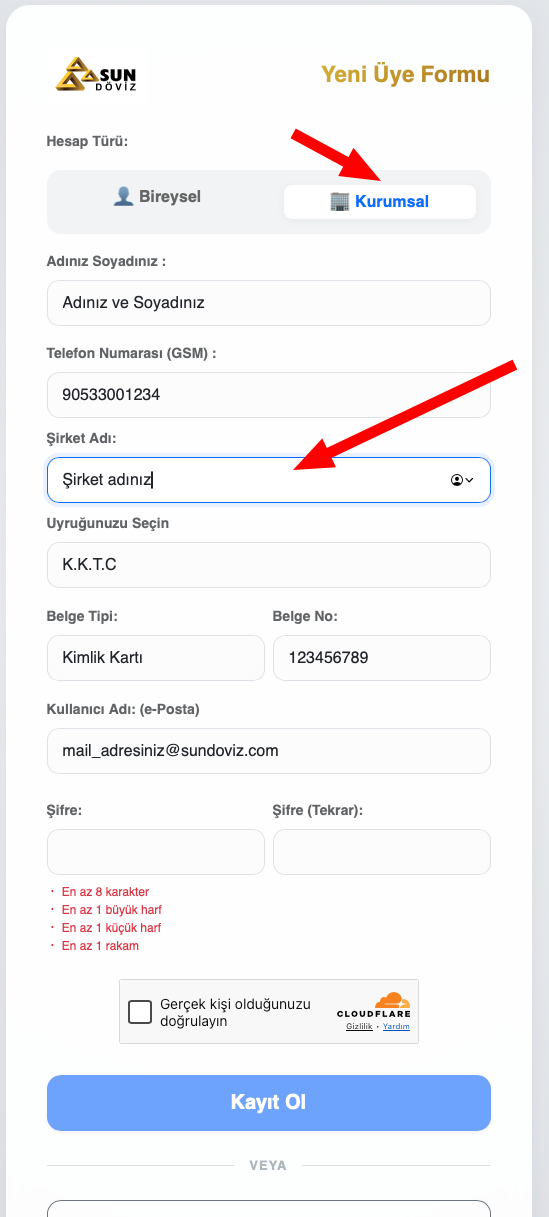
If you will trade on behalf of a company, select Kurumsal (Corporate). An additional Şirket Adı (Company Name) field will appear.
3. Logging In
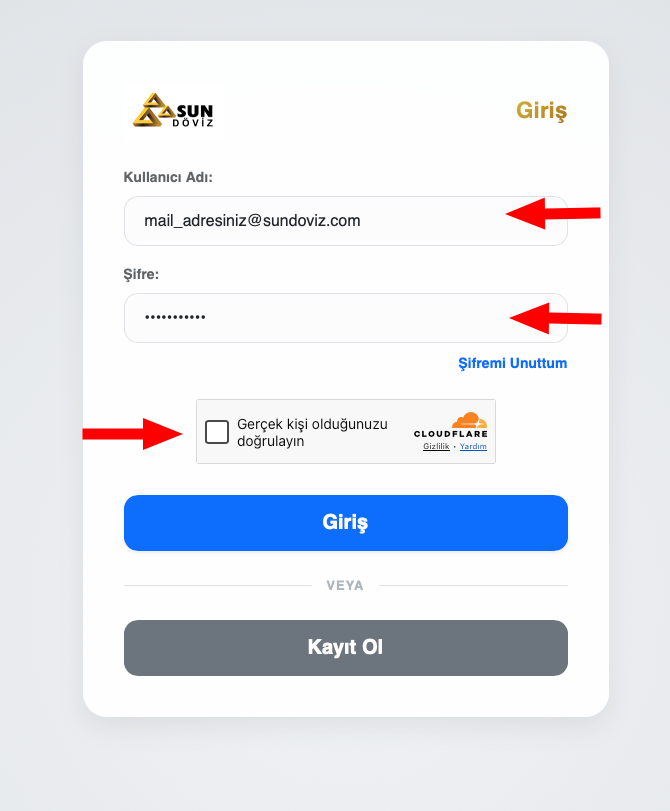
- Enter your email address in the Kullanıcı Adı (Username) field
- Fill in the Şifre (Password) field
- Complete the security verification (Cloudflare)
- Click the Giriş (Login) button
4. Home Page & Currency Rates
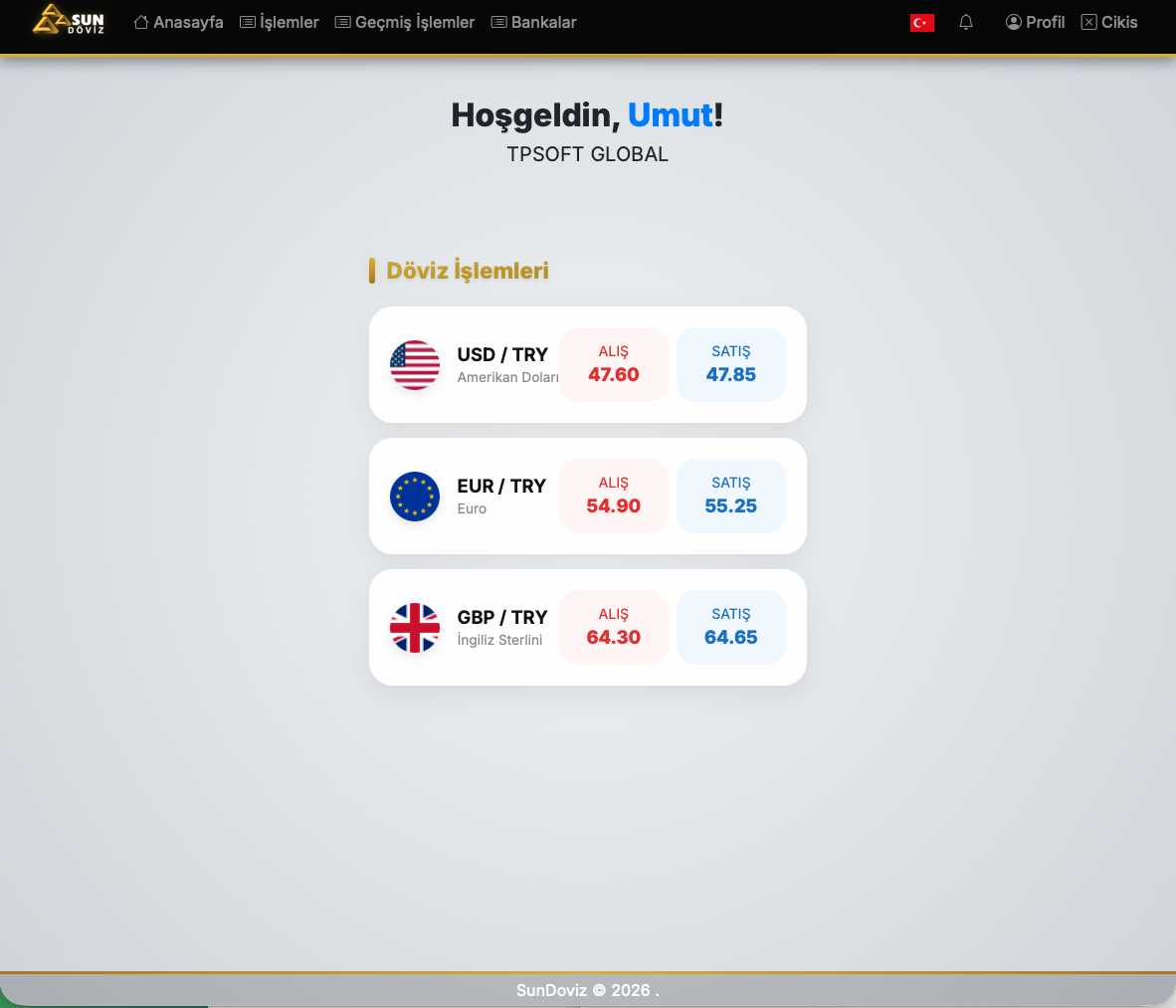
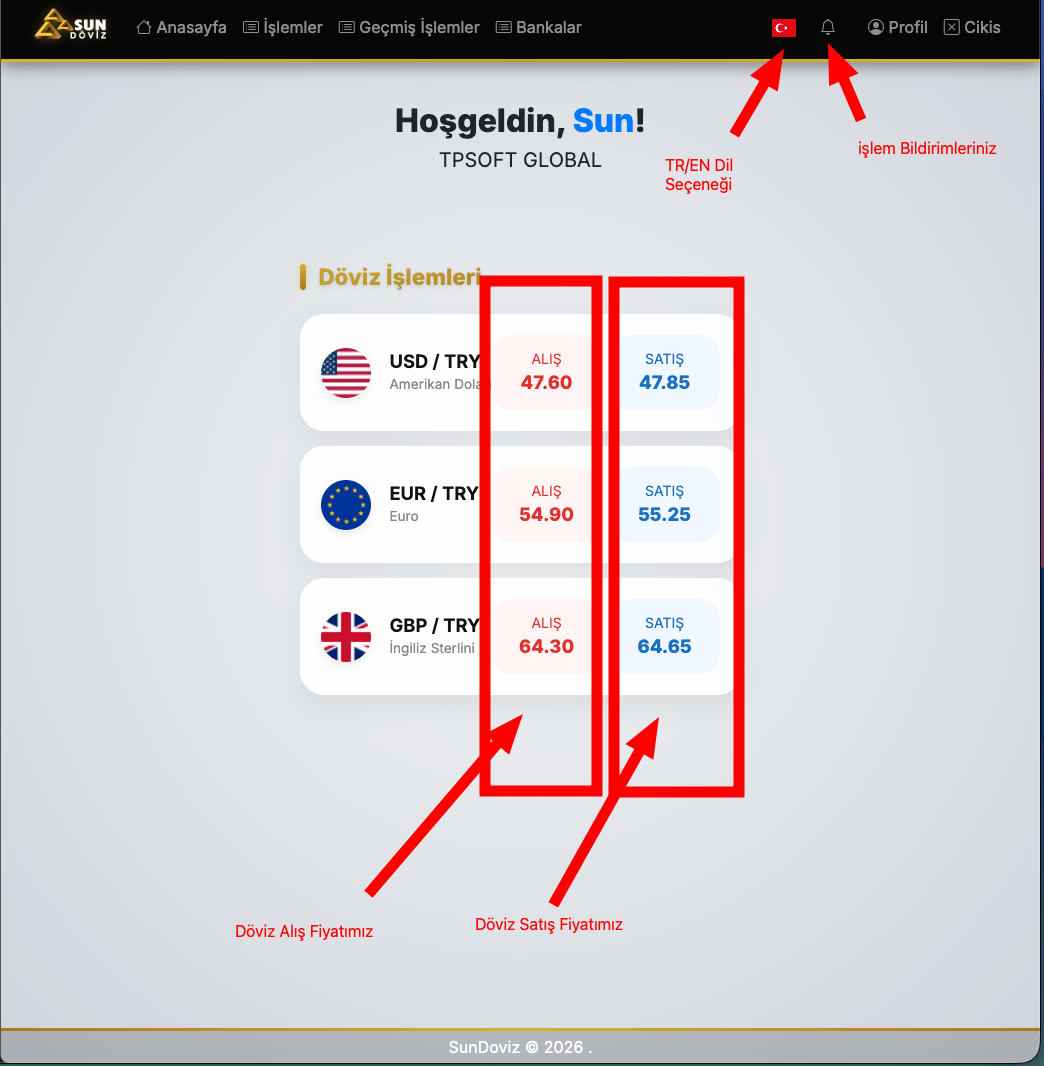
After logging in, current exchange rates are listed on the home page. Each currency has ALIŞ (Buy) and SATIŞ (Sell) buttons.
5. Buy / Sell Transactions
Find the relevant currency on the home page and click ALIŞ (Buy) or SATIŞ (Sell).
Step 1 — Enter Amount
Enter the amount in the Ödeyeceğiniz Tutar (Amount You Will Pay) field; the Alacağınız Tutar (Amount You Will Receive) is calculated automatically.
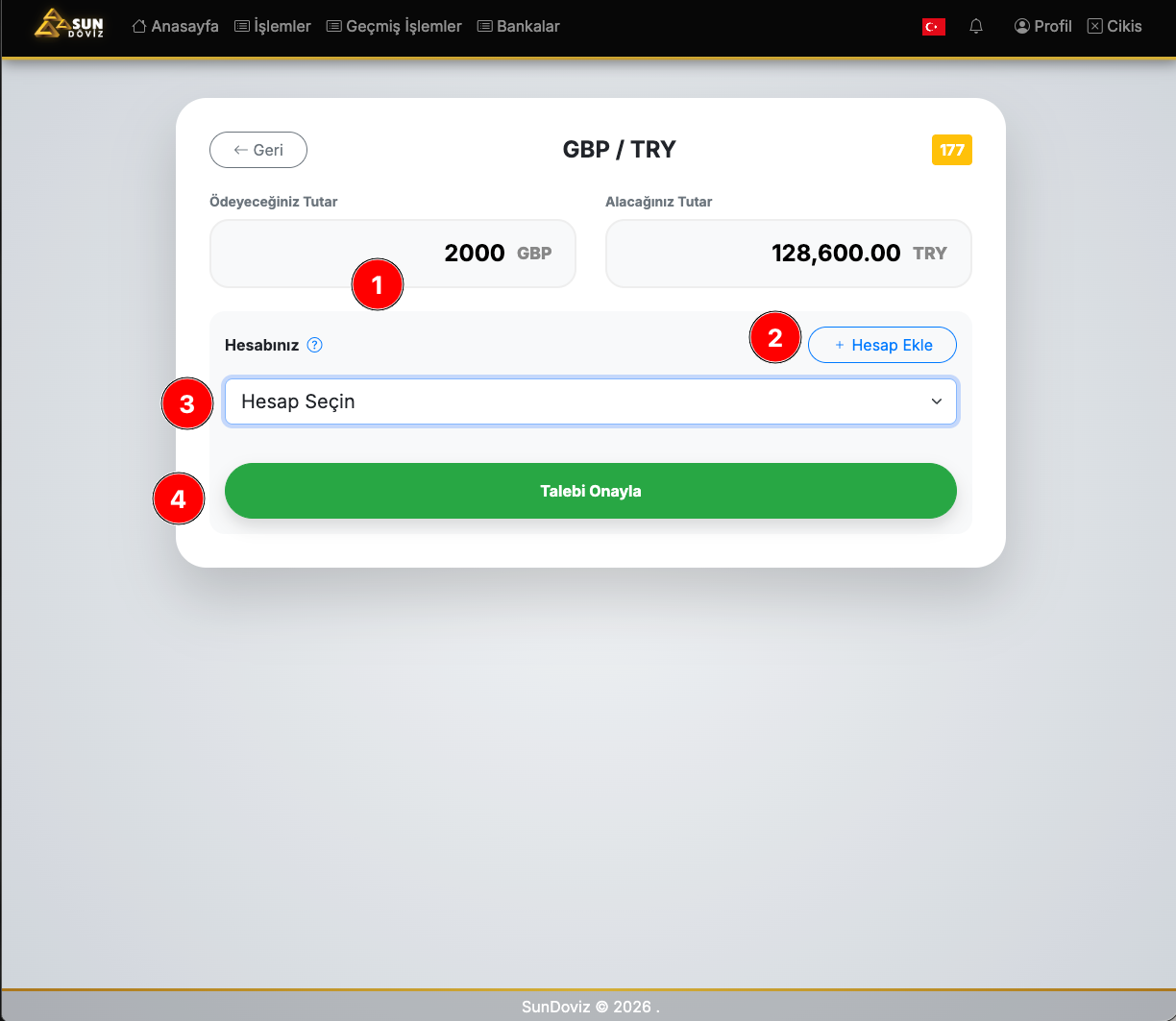
Step 2 — Select Bank Accounts
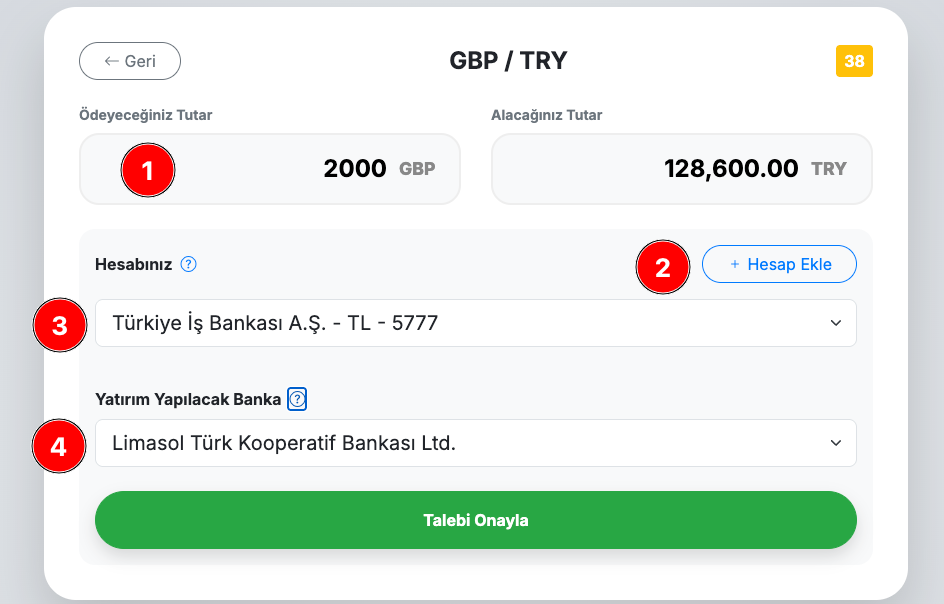
Step 3 — Submit Request
After checking all details, click Talebi Onayla (Confirm Request). Once your request is received, transfer details are shown on screen.
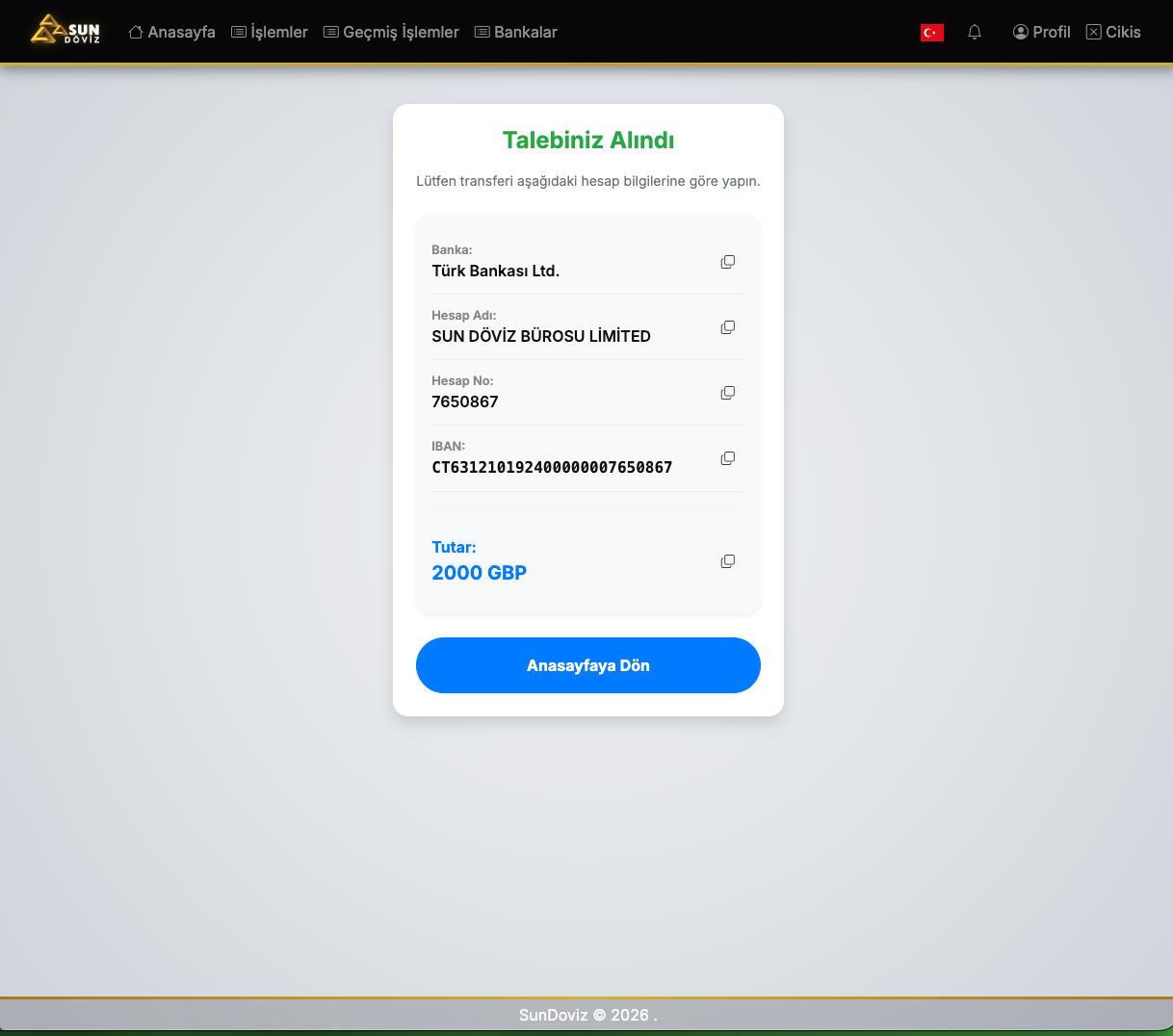
6. Offer Process — Accept / Reject
After you submit your request, our operators will offer either your current rate or a better parity based on live market information.
When an Offer Arrives
A warning appears on the notification bell, and the transaction status updates to Teklif Geldi (Offer Received).
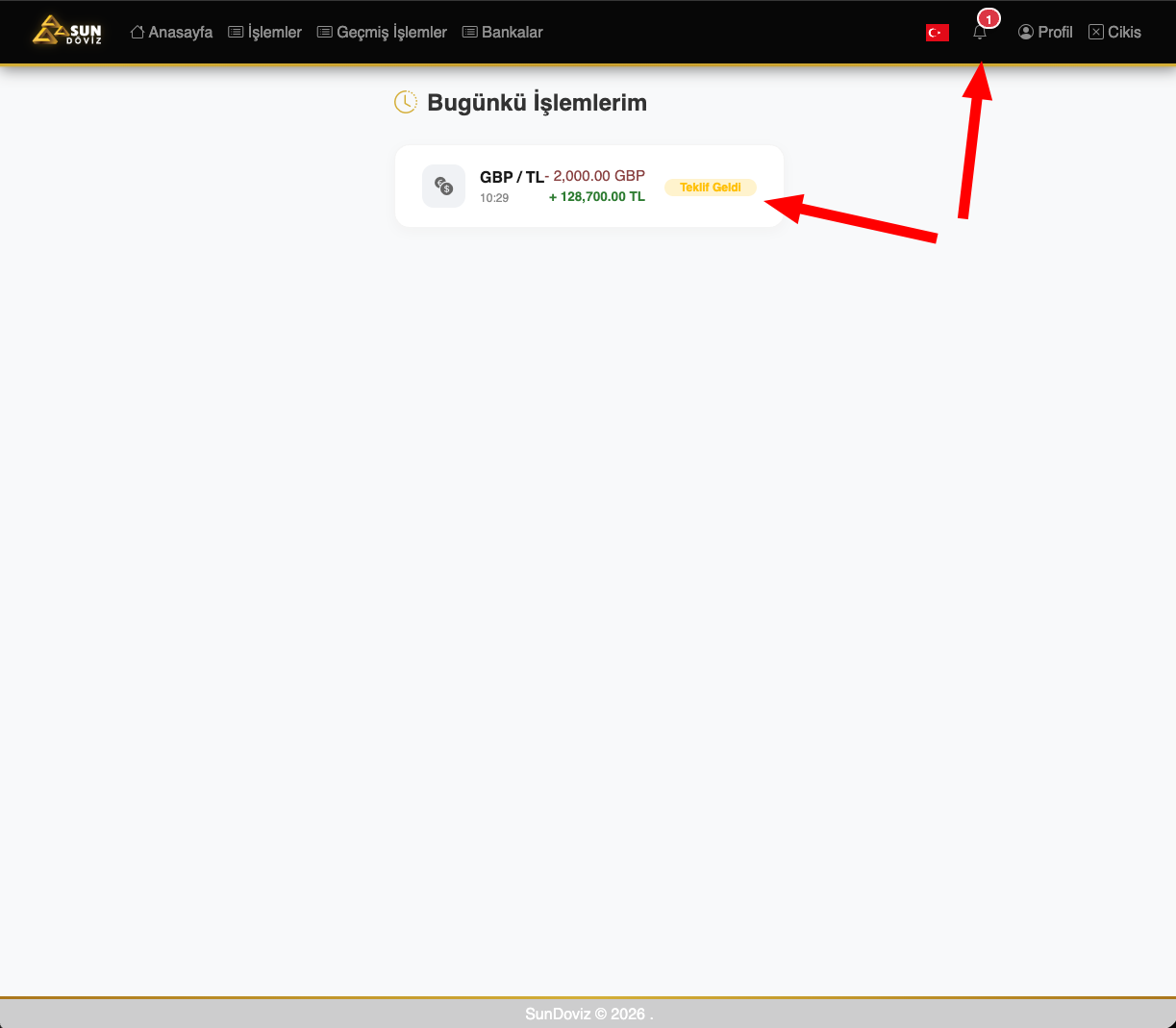
Click the transaction card to open the İşlem Özeti (Transaction Summary) window. Review the rate, amounts, and bank details, then choose Onayla (Accept) or Reddet (Reject).
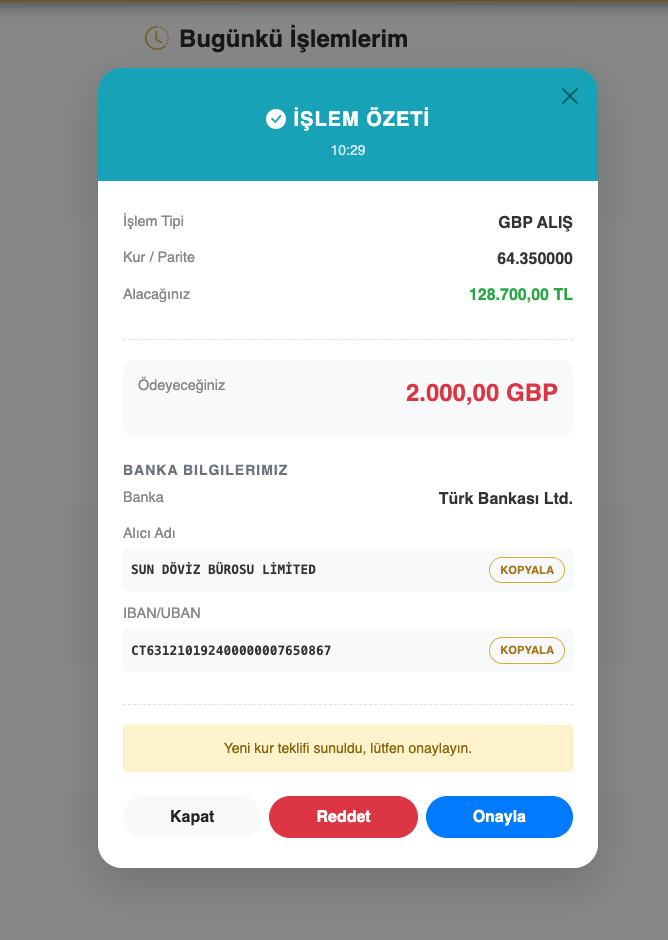
After you accept, your transaction is reviewed. You can copy IBAN details with the KOPYALA (Copy) button.
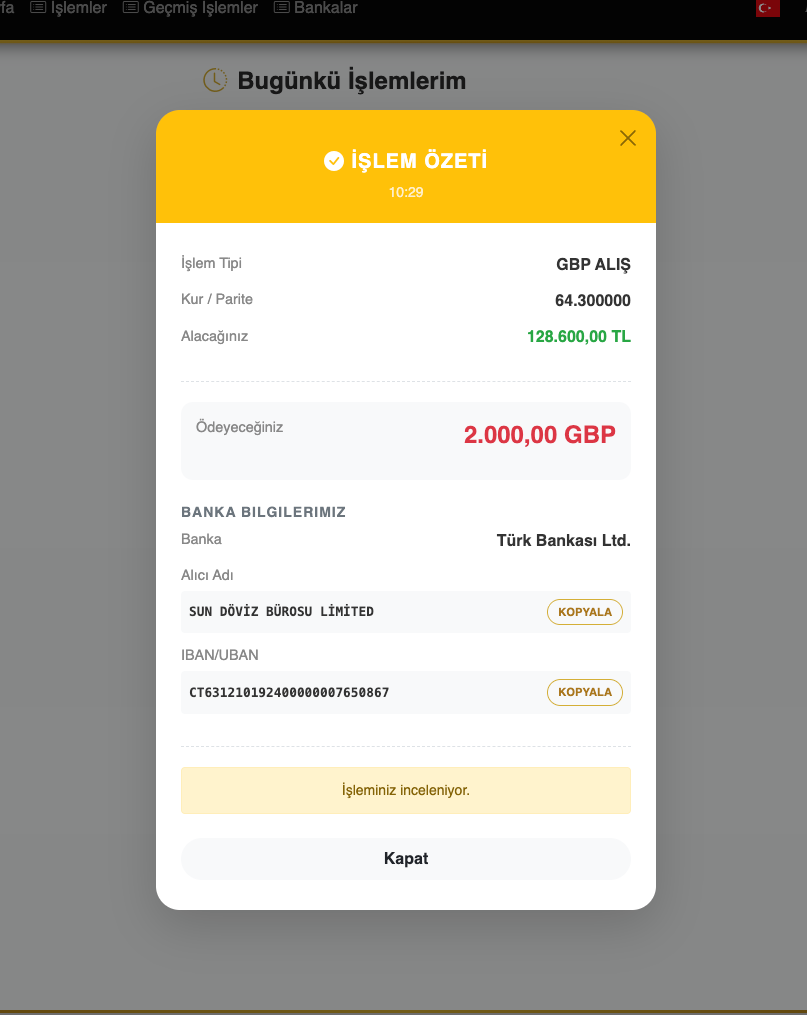
Accepting the Offer
After clicking Onayla (Accept), transfer your funds to the specified Sun Döviz account.
Rejecting the Offer
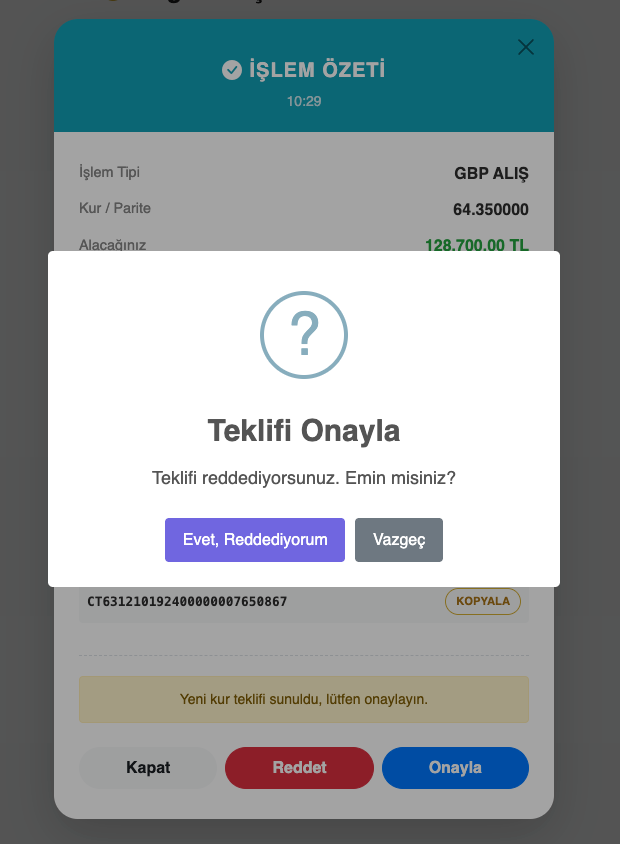
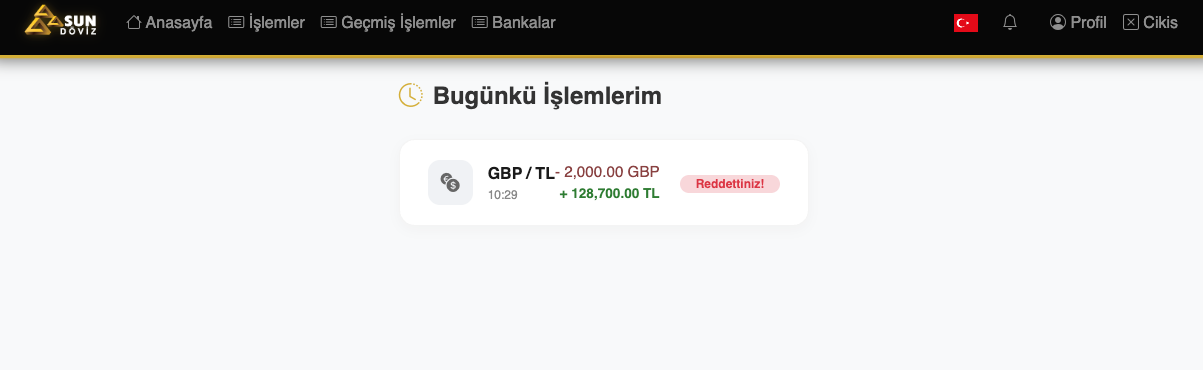
7. Transactions (Daily)
Click the İşlemler (Transactions) tab in the top menu to see all transactions you made today.
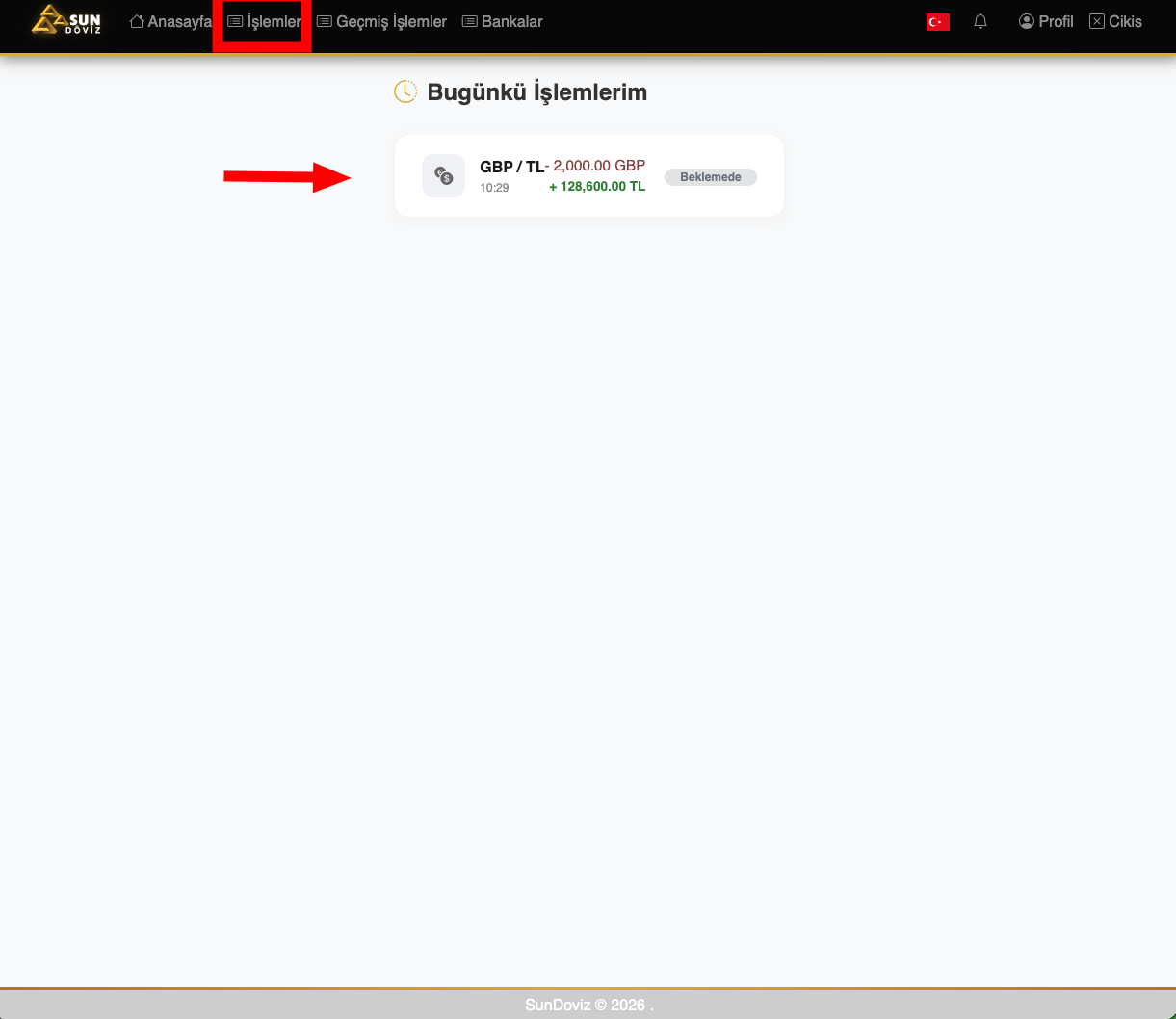
8. Transaction History
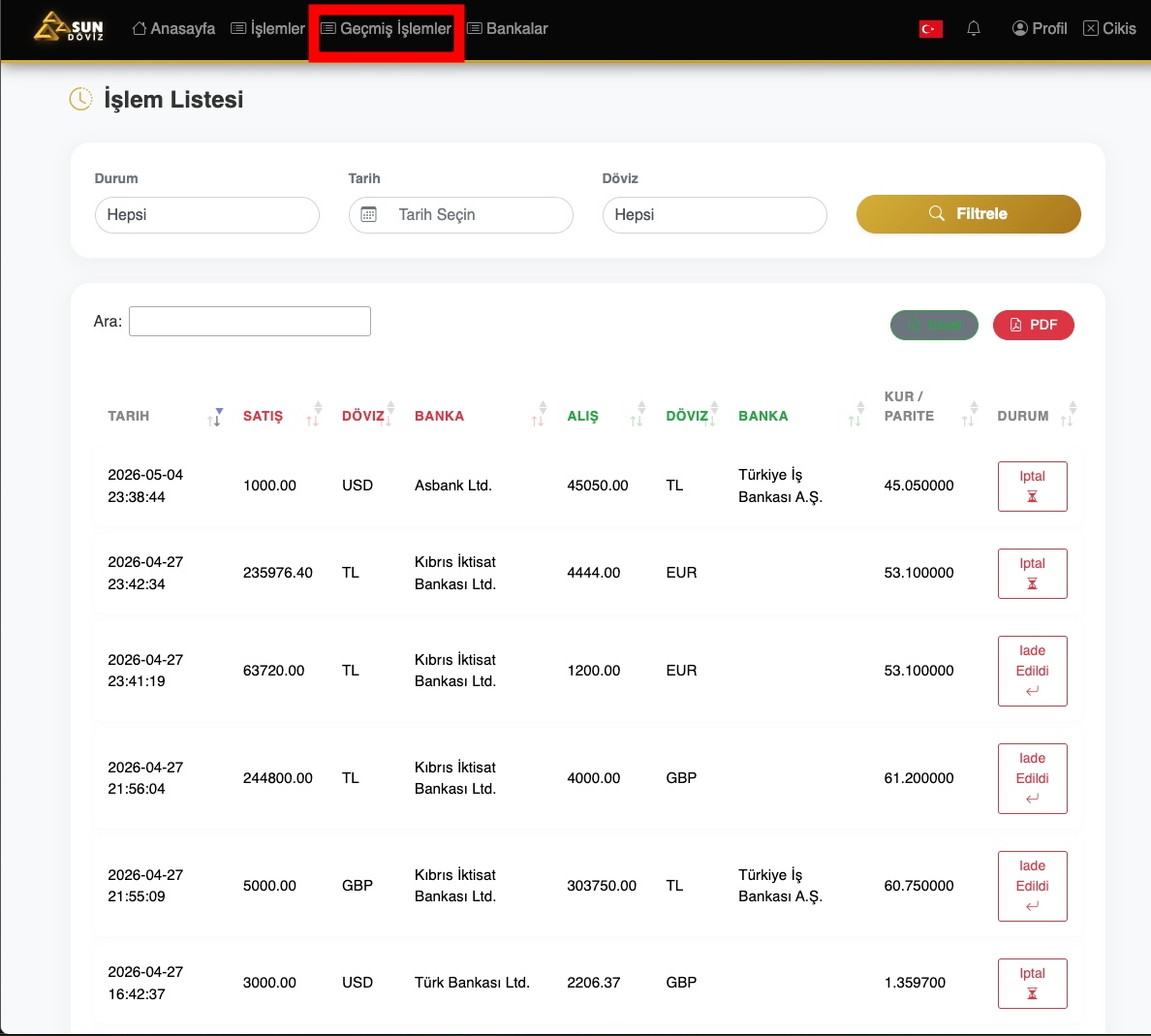
From the Geçmiş İşlemler (Transaction History) menu, you can filter all transactions you have made so far and export them as Excel or PDF.
9. My Bank Accounts
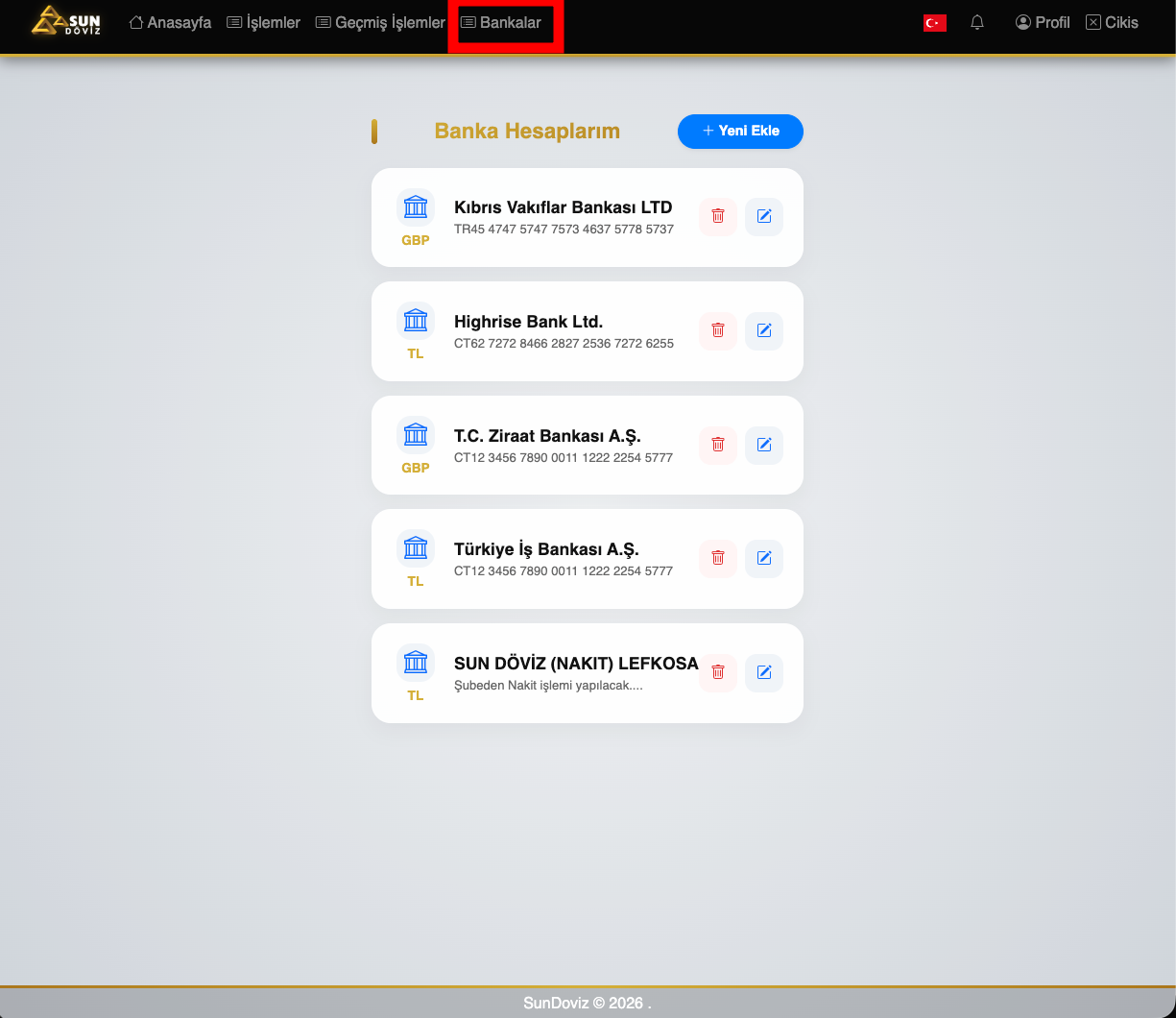
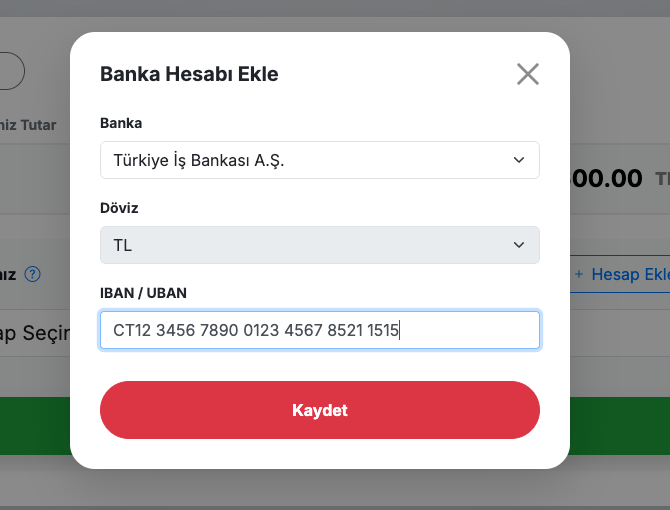
From the Bankalar (Banks) menu, you can save, edit, or delete your IBAN/UBAN addresses.
10. Profile & Password Update
You can update your password from the Profil (Profile) link in the top-right corner.
11. Forgot Password
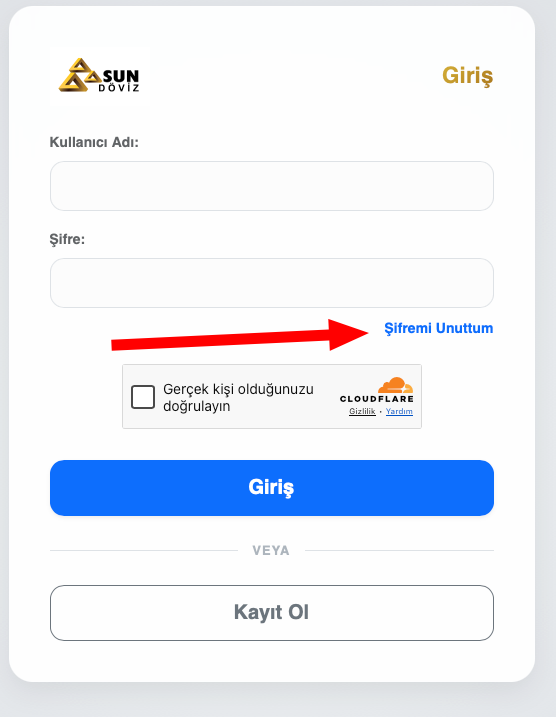
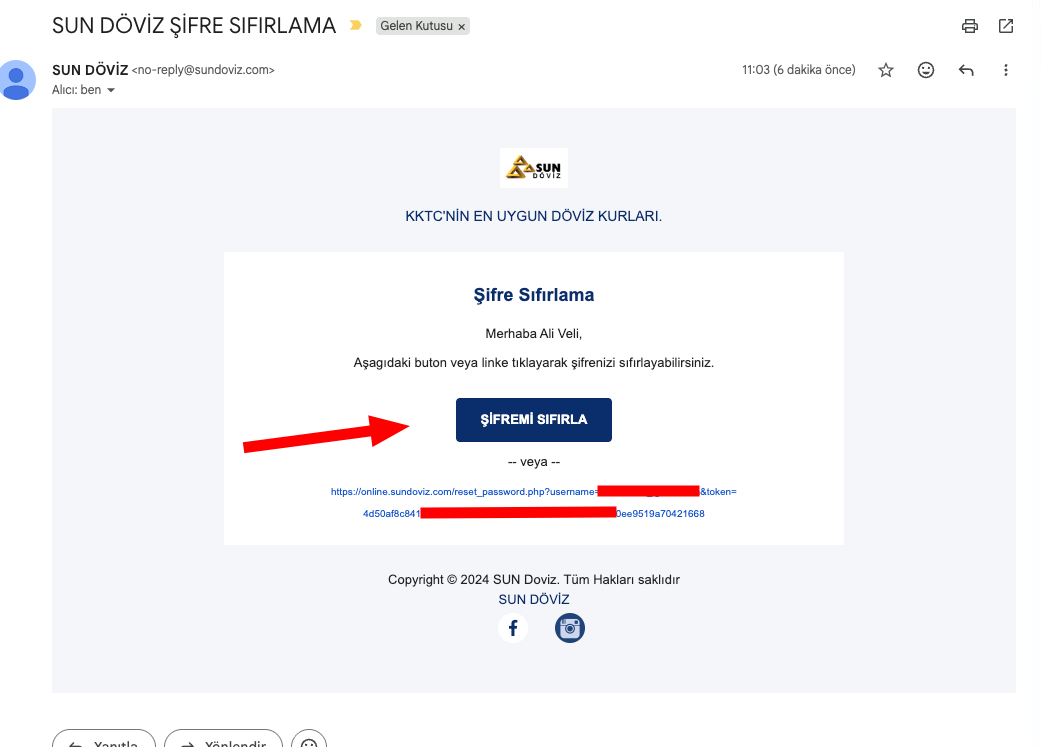
Click the Şifremi Unuttum (Forgot Password) link on the login screen. Set your new password using the ŞİFREMİ SIFIRLA (Reset My Password) link sent to your email.
12. Frequently Asked Questions
How long does an offer take?
After your request is sent to our operators, it is reviewed shortly based on market conditions. You will receive a notification when the offer is ready.
For which amounts are special offers available?
For transactions of 2,000 currency units or more, our operators may offer you a special rate based on current market conditions.
What should I do after accepting the rate?
After accepting the offer, transfer the specified amount to the Sun Döviz bank account shown on screen.